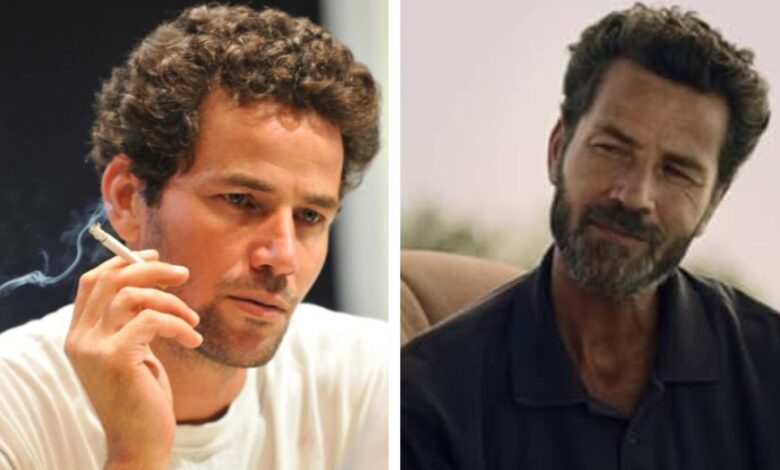
Saleh Bakri is one of the most captivating and versatile Palestinian actors of his generation, known for his deep emotional range and ability to bring humanity to every role he portrays. With a career spanning theatre, film, and international collaborations, he has become a global symbol of Palestinian storytelling and artistic excellence.
Quick Bio
| Full Name | Saleh Bakri |
|---|---|
| Date of Birth | March 1, 1977 |
| Place of Birth | Bi’ina, Galilee, Palestine |
| Nationality | Palestinian |
| Occupation | Actor (Film, Theatre, Television) |
| Father | Mohammad Bakri (Actor and Filmmaker) |
| Brothers | Ziad Bakri, Adam Bakri |
| Years Active | 2007 – Present |
| Known For | The Band’s Visit, Wajib, The Present |
| Languages | Arabic, English, Hebrew |
| Awards | Multiple international nominations and film festival honors |
| Notable Traits | Passionate storytelling, expressive acting, cultural advocacy |
Early Life and Background

Saleh Bakri was born on March 1, 1977, in the small village of Bi’ina, located in the Galilee region of northern Palestine. Growing up in a family deeply rooted in art and culture, he was surrounded by poetry, cinema, and political expression. His early environment played a vital role in shaping his worldview and artistic direction.
As a young boy, Saleh Bakri was drawn to stories that reflected the everyday struggles and hopes of Palestinians. His upbringing in a politically charged region gave him a strong sense of identity and purpose, which would later become evident in his film choices and performances. His love for storytelling was nurtured not only by his surroundings but also by his talented family, who were already making their mark in the creative world.
Family Legacy in Acting
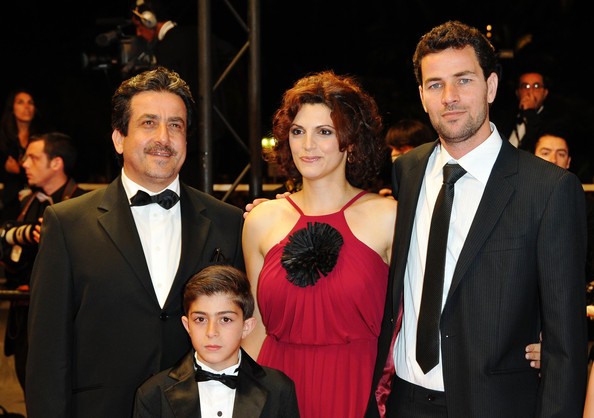
Saleh Bakri belongs to one of Palestine’s most respected artistic families. His father, Mohammad Bakri, is a legendary actor and filmmaker, celebrated for his bold political works and dedication to Palestinian cinema. Saleh’s brothers, Ziad Bakri and Adam Bakri, also followed in their father’s footsteps, making their own names as acclaimed actors.
Growing up under the influence of such a creative household inspired Saleh Bakri to see acting not just as a profession, but as a powerful form of resistance and expression. The Bakri family has collectively become a symbol of artistic resilience and pride in Palestinian identity. Saleh often acknowledges that his father’s mentorship and courage played a crucial role in shaping his artistic path.
Education and Training
Before stepping into the world of professional acting, Saleh Bakri pursued formal education and artistic training that deepened his understanding of performance. He developed a passion for theatre early on, performing in local productions that allowed him to experiment with emotional expression and dramatic storytelling.
Through his theatre experiences, Saleh Bakri learned to combine physical presence with psychological depth, a skill that would later define his film career. His transition from stage to screen came naturally, driven by his desire to share authentic Palestinian narratives with global audiences.
Career Beginnings
Saleh Bakri’s professional career began in the mid-2000s, when he appeared in several short films and stage plays that gained attention for their sincerity and depth. His first significant breakthrough came with the Israeli film The Band’s Visit (2007), where he played a small but memorable role.
Although the political context made it challenging for Palestinian actors to gain visibility, Saleh Bakri persisted, using his talent to transcend boundaries. He quickly became known for his nuanced portrayals of complex characters — men torn between personal emotion and societal struggle. His early performances were marked by intensity and quiet strength, earning him recognition among critics and filmmakers alike.
Breakthrough Roles
The turning point in Saleh Bakri’s career came with his remarkable performance in Wajib (2017), directed by Annemarie Jacir. The film, which co-starred his real-life father, explores the emotional relationship between a father and son against the backdrop of Palestinian tradition.
Another defining moment was his lead role in The Present (2020), a short film that won international acclaim, including a BAFTA Award and an Academy Award nomination. The film’s emotional portrayal of a father-daughter journey through checkpoints resonated globally, highlighting Bakri’s ability to communicate profound emotion through minimal dialogue.
Other noteworthy works include Salt of This Sea (2008) and When I Saw You (2012), both directed by Jacir. Through these roles, Saleh Bakri solidified his reputation as one of the most authentic voices in contemporary Arab cinema.
International Recognition
Over the years, Saleh Bakri has earned significant international recognition for his dedication to meaningful storytelling. His films have been screened at top festivals such as Cannes, Venice, and Toronto, where critics praised his emotional authenticity and screen presence.
He has also collaborated with directors and producers from across the Middle East and Europe, bridging cultural and cinematic divides. His work consistently highlights the resilience of the Palestinian spirit, earning him a place among the most respected figures in world cinema.
Acting Style and Philosophy
Saleh Bakri’s acting is defined by subtlety, emotion, and truth. He often portrays characters caught between resistance and humanity — men struggling with identity, occupation, and love. His performances avoid melodrama, instead embracing quiet intensity and raw realism.
He believes that acting is a form of storytelling that can bridge understanding between cultures. Through his work, Saleh Bakri emphasizes empathy, connection, and the shared human experience. He once described his approach as “listening to silence,” revealing how deeply he values authenticity in every gesture and expression.
Personal Life and Relationships
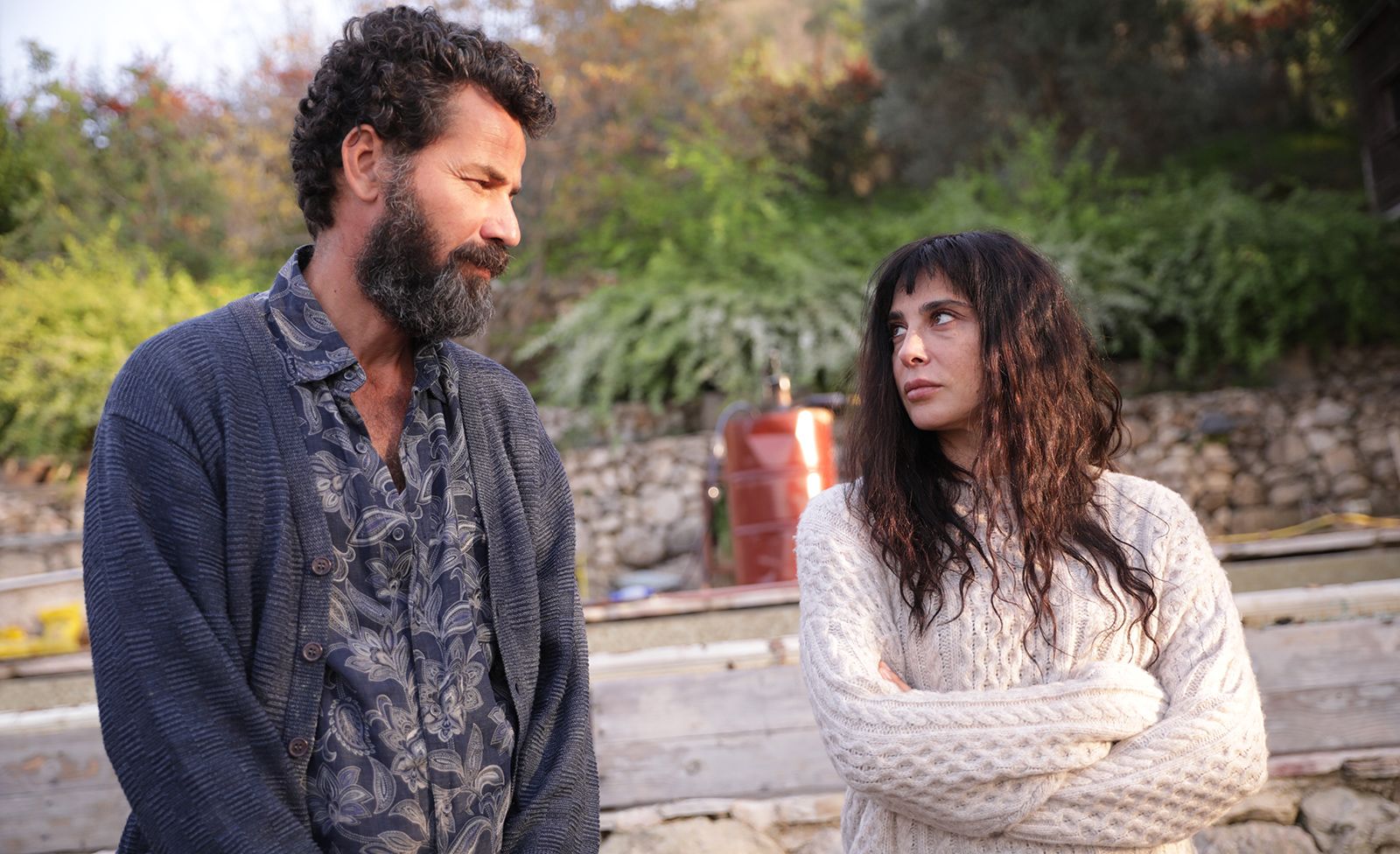
Despite his fame, Saleh Bakri remains a private person. He rarely discusses his personal relationships or romantic life in public, choosing to keep the focus on his artistic journey. This discretion reflects his humility and deep respect for privacy, even as his popularity grows internationally.
It is known, however, that his close relationship with his family — especially his father and brothers — continues to be one of the most significant influences in his life. His commitment to art and culture has always been grounded in family values, community, and purpose.
Age and Physical Appearance

As of 2025, Saleh Bakri is 48 years old. He is known for his tall, lean build, expressive brown eyes, and thoughtful demeanor. His physical presence exudes calm confidence, often complemented by his signature beard and quietly intense gaze.
On screen, Saleh Bakri has a unique charisma — a blend of vulnerability and strength that captivates audiences. His timeless appearance and soulful expression make him a memorable figure in every role he takes on.
Social and Cultural Impact
Beyond acting, Saleh Bakri has become a cultural ambassador for Palestinian identity. His films often reflect themes of displacement, love, and resistance, offering global audiences a deeper understanding of Palestinian life.
He has spoken about the importance of using cinema as a bridge — a way to share stories that humanize rather than politicize. Through his performances, Saleh Bakri continues to challenge stereotypes and promote cross-cultural empathy.
His influence extends beyond the screen, inspiring younger generations of Arab actors and filmmakers to pursue their dreams despite the odds.
Recent Projects and Future Plans
In recent years, Saleh Bakri has continued to expand his artistic horizons, appearing in international collaborations and independent films. His upcoming projects include new Arabic and European productions that explore identity, heritage, and belonging. He has also expressed interest in directing in the future, aiming to tell stories that blend art with activism. As he continues to evolve as an artist, Saleh Bakri remains committed to using his platform to represent Palestine with dignity and creativity.
Conclusion
Saleh Bakri’s journey from a small village in Galilee to the global film stage is a story of talent, resilience, and purpose. Through his films, he has brought Palestinian voices to international audiences and proved that art can transcend barriers. His dedication to truth, humanity, and emotional honesty makes him not only a remarkable actor but also a vital storyteller for his people. Saleh Bakri continues to inspire — a man whose art speaks the language of hope, struggle, and shared humanity.
FAQs
Who is Saleh Bakri?
Saleh Bakri is a Palestinian actor known for his powerful performances in international films that highlight Palestinian identity and culture.
Where was Saleh Bakri born?
He was born in Bi’ina, a village in the Galilee region of Palestine, where he grew up surrounded by art and activism.
What are Saleh Bakri’s most famous films?
Some of his most acclaimed works include Wajib, The Present, Salt of This Sea, and The Band’s Visit.
Who are Saleh Bakri’s family members?
He comes from a well-known artistic family — his father Mohammad Bakri and brothers Ziad Bakri and Adam Bakri are also respected actors.
How old is Saleh Bakri?
As of 2025, Saleh Bakri is 48 years old.
What makes Saleh Bakri’s acting style unique?
His acting is known for its subtle emotion, realism, and deep humanity, often focusing on the personal struggles of everyday life.
Has Saleh Bakri won any awards?
Yes, his work in The Present earned global recognition, including a BAFTA Award and an Oscar nomination for the film.
Is Saleh Bakri married?
He keeps his personal life private, and no confirmed public details are available about his marital status.
What languages does Saleh Bakri speak?
He is fluent in Arabic, Hebrew, and English, allowing him to work across different cultures and industries.
What is Saleh Bakri’s impact on cinema?
Saleh Bakri has become a symbol of Palestinian representation in world cinema, using his craft to tell stories of resilience, love, and identity.
For More Updates Visit: Fortune Magazine